Private timers are easy to miss
The screen is small. The device may lock. The person holding it may be off to the side, so the speaker cannot glance at it without turning away from the audience.
Time tools
A practical look at PresentationTimer, a browser-based speaker timer with host controls, a full-screen display, and color-coded warning cues for talks, webinars, classrooms, and meetings.
Quick answer
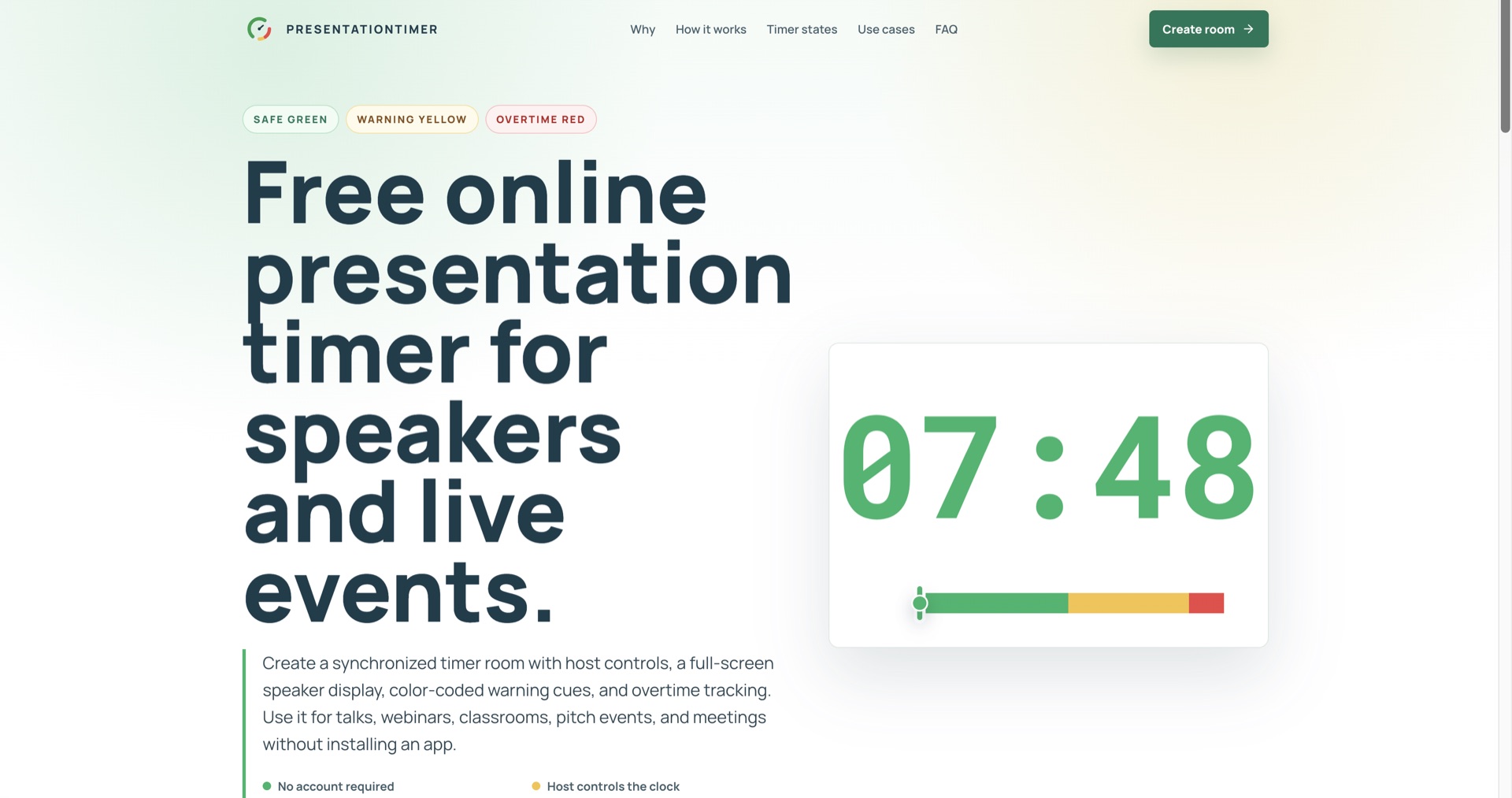
A free online presentation timer works better than a phone countdown when more than one person needs the same time signal. PresentationTimer gives the host a control page, then shares a large speaker display that moves through green, yellow, and red. You can use it for conference talks, webinars, classroom presentations, and meetings without installing an app.
Most talks do not fail because the slides are weak. They fail because nobody in the room can see the clock at the same time. The speaker is watching the audience. The host is watching the agenda. The producer is watching the stream. A private timer on one phone cannot carry all of that. An online presentation timer is useful because it turns remaining time into a shared display instead of a private reminder.
That is the job PresentationTimer is built for. You create a timer room in the browser, control the countdown as the host, and open a clean speaker display on a projector, confidence monitor, classroom screen, or webinar share. No account is required for the basic flow, and speakers do not need to install anything.
An online presentation timer is a countdown that lives in the browser and can be shared with the people running a session. The host starts, pauses, resets, and changes the duration. Speakers and the room watch a display that follows the same clock. That split is the difference between a personal timer and a presentation timer. One person holds the controls. Everyone else gets a readable cue.
A phone timer is fine for a kitchen or a private rehearsal. It is a weak tool for a live talk. If only the host can see the remaining minutes, the warning has to be spoken out loud. That interrupt often arrives too late, and it breaks the speaker's focus.
The screen is small. The device may lock. The person holding it may be off to the side, so the speaker cannot glance at it without turning away from the audience.
A visible timer lets the speaker wrap up without a whispered "one minute left" from the side of the stage. Color states do that job quietly.
In a webinar, the producer, speaker, and screen-share operator may be in different places. One shared display keeps them on the same remaining time.
PresentationTimer is built around those gaps. The host keeps control. The speaker display stays large. Color states show whether the talk is still in safe time, approaching the limit, or already over. Overtime remains visible, so the room can recover the schedule instead of pretending the overrun did not happen.
The product uses a simple room flow. You create a timer room, control it as the host, share the display link, and let speakers follow the cues. The default setup is enough for a five-minute update, a student presentation, or a conference session.
01
Start with a default presentation timer in the browser. No account or installation is required for the basic room flow.
02
Use the host view to start, pause, reset, and change duration while speakers follow the same clock.
03
Open the speaker display on a second screen, confidence monitor, classroom projector, or webinar share.
04
The timer stays readable as it moves through green, yellow, red, and overtime states.
The host view is the control point. From there you can start, pause, reset, and adjust the duration while the shared display follows in real time. The speaker display is meant to be opened on a second device: a stage monitor, classroom projector, meeting screen, or the window you share in Zoom or Google Meet. That keeps the countdown in front of the people who need it, without exposing the host controls.
The same room can also support more structured live sessions, including a private host workspace, read-only speaker and display views, an agenda timer, saved rooms, and a short display message beside the countdown. For most talks, the free starter is enough: one room, host control, a shareable speaker display, and warning states.
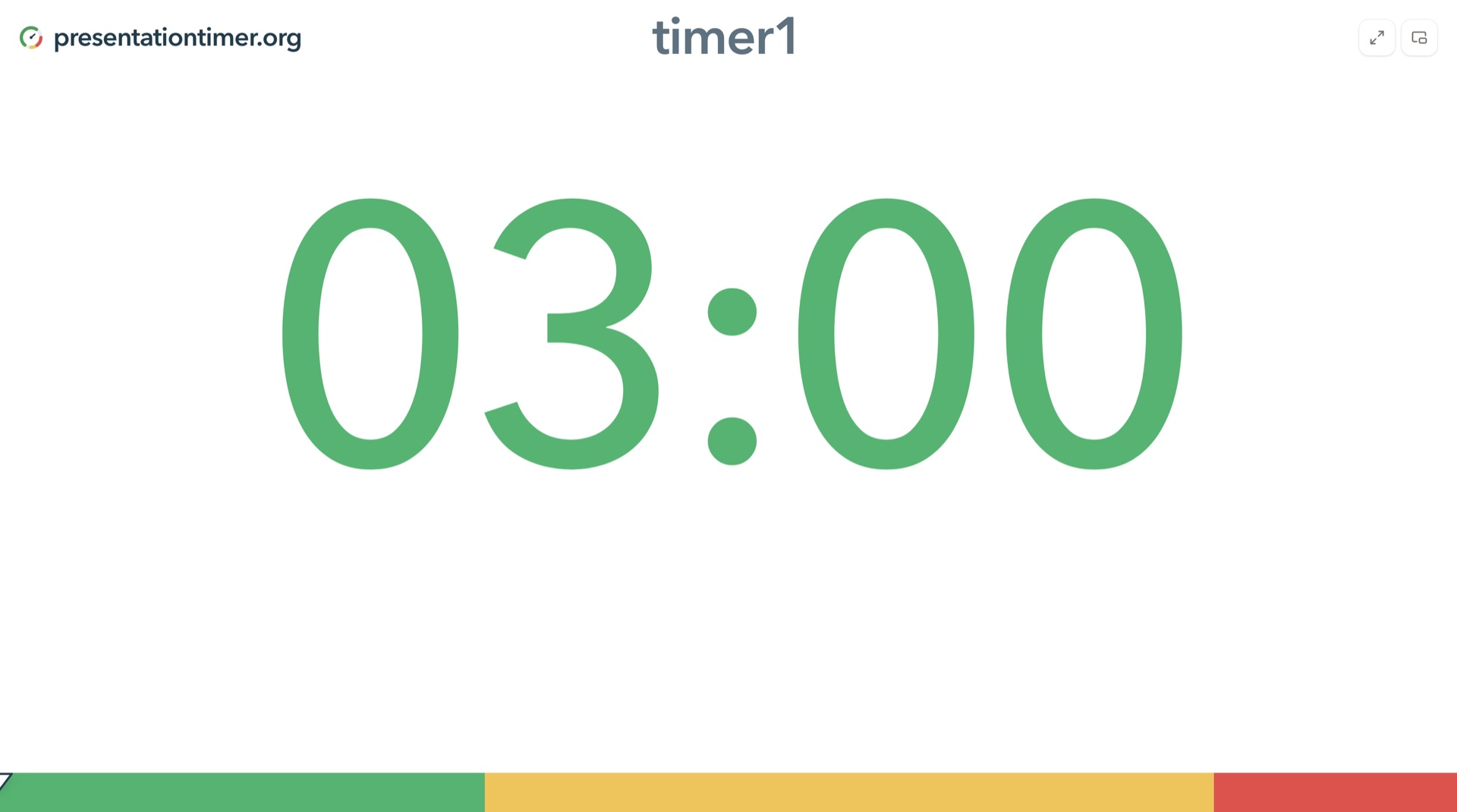
The strongest part of a presentation timer is not the digits. It is the warning system. A large 03:00 on a white screen, with a green-to-red bar underneath, can be read from across a classroom or from a confidence monitor at the foot of a stage.
Safe time
The speaker still has room to develop a point, finish a demo, or move to the next slide without rushing.
Wrap-up cue
The talk is approaching the limit. Speakers can start closing the section before the host has to intervene.
Overtime pressure
The session is at or past the limit. Overtime stays visible so the room can recover the schedule honestly.
Hosts can stay quiet. Speakers can pace themselves. The room can see the same state without a side conversation. Overtime stays on screen, which is more honest than a timer that vanishes at zero.
Conference talks and speech practice are the obvious fit. A speaker who can see remaining time is less likely to rush the close or skip the ask. The same pattern works for panels, webinars, classrooms, and weekly meetings.
Keep keynote speakers, breakout rooms, and stage displays on one visible session countdown.
Give hosts, speakers, producers, and screen-share operators the same remaining time.
Put student talks, lesson blocks, transitions, and Q&A on the board instead of a phone.
Keep standups, reviews, moderators, and audience questions aligned with one shared clock.
Webinar teams need it because the host, speaker, and screen-share operator are often on separate devices. Classroom presentations have the same need at a smaller scale: student talks, lesson blocks, transitions, and Q&A all stay tighter when the countdown is on the board. Weekly meetings overrun because the agenda lives in a doc and the clock lives somewhere else. Use PresentationTimer when a host, a speaker, and a display need to stay in sync.
A personal countdown on one laptop is still a private clock. The speaker may see it. The host may not. The audience-facing screen almost never does. PresentationTimer is the better match when a host has to control time for other people. The speaker should not be the person clicking start and pause, and warning colors should change before the host has to interrupt.
That host-and-display split is the product's main advantage. One person runs the clock. Everyone else follows a full-screen cue. If you are rehearsing alone, any countdown can work. If you are running a pitch, webinar, classroom talk, or conference session, the shared presentation timer is the tool that keeps the room aligned.
Open presentationtimer.org and create a room. The starter plan is free: one presentation timer room, a host control panel, a shareable speaker display, and warning and overtime states. You can run the basic flow without creating an account. Paid plans exist for larger rooms, saved setups, agendas, and branded displays, but you do not need them to test a talk this afternoon.
After the room is open, put the display on the screen the speaker will actually see: a second laptop, a classroom projector, or a shared webinar window. Set a duration that matches the real slot, including Q&A if the host wants that visible too. Start the timer before the speaker begins. The value is not a fancier clock. The value is that the host, speaker, and screen are looking at the same remaining time.
No. PresentationTimer runs in the browser. Speakers can follow the display link on any device that can open a webpage. That is the point of an online presentation timer: the setup should survive a school laptop, a borrowed stage monitor, or a last-minute webinar change.
Yes. Share the display link with the producer or speaker, or put the display in the screen share. Remote rooms drift when each person watches a different clock. One shared countdown keeps the host and the speaker aligned even when they are not in the same room.
The starter plan is free and covers the core job: create a timer, control it as the host, and share a live speaker display. If an event needs more saved rooms, more connected devices, or a full agenda workflow, the paid plans add that capacity. For most classroom talks and weekly meetings, the free room is the right place to start.
Open PresentationTimer when a speaker, host, and display need the same countdown. Create a room in the browser, share the speaker display, and keep the talk on schedule without installing an app.
Open PresentationTimer